Asset Health gives status summary information at a glance, and allows you to investigate and address unhealthy assets.
NB: To use Asset Health
1. The Organisation must have Asset Health Enabled under functionality. Go to Admin > Organisations and edit the organisation you would like to enable Asset Health for.
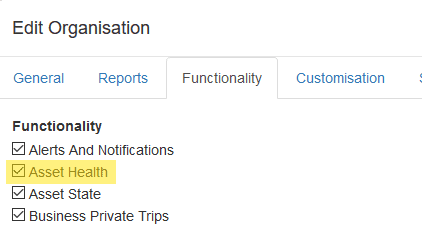
2. The user will need the ability to edit alerts and assets to set up Asset Health functions shown in the steps below. The user permissions in admin > users will need to reflect this.

The asset health feature displays which devices are in an ‘alerted state’. The idea is that an asset is unhealthy when an alert is “on”.

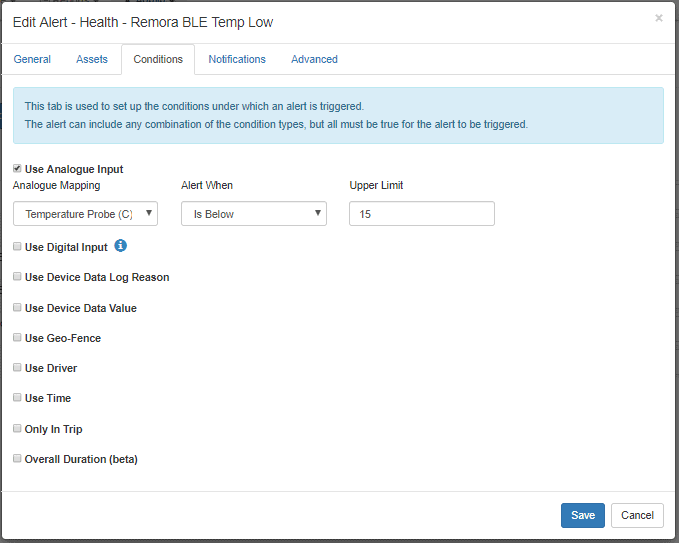
In this example, we are monitoring the temperature on a fleet of assets and want to know at a glance which are unhealthy. We have created two separate alerts for low and high thresholds. The device is “unhealthy” when the temperature is below 15 ֯C or above 26 ֯C.
To set this up, the first step is to create the alerts. The alerts should be setup so that the asset is unhealthy when the alert is on.
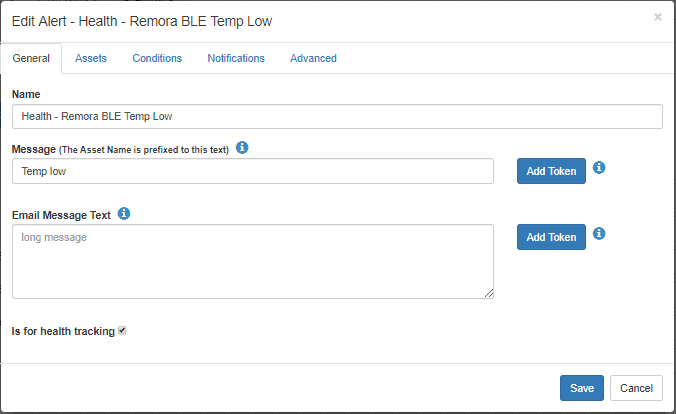
1. Edit or create an alert and tick “Is for health tracking”
2. Choose the alert conditions so that it is “unhealthy when on”. Eg. When the temperature is below 15 ֯C.
3. Add the asset you want to the alert.
Now, we enable the asset for Asset Health Tracking:
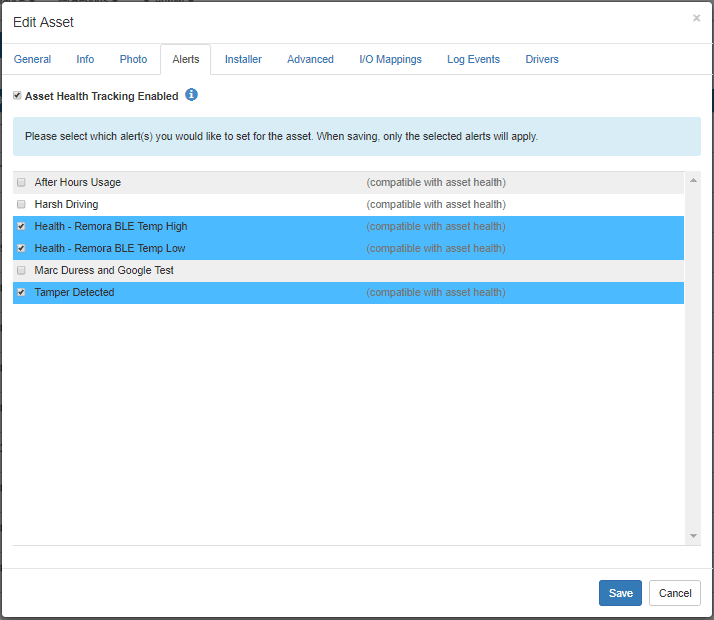
4. Edit the asset (Manage Assets->Click an Asset Name->Alerts) and tick “Asset Health Tracking Enabled” under the “Alerts” tab and select the alerts created above
Now you should be setup and ready to use the feature. The next steps show how to use Asset Health.
5. Special markers on the Live View: Go to the Live View and select “Asset Health” under Tracked Assets:
a. You should see unhealthy assets as red
b. Healthy assets as green
c. Assets with no health tracking as white.
d. Assets with an Unknown health state as yellow.
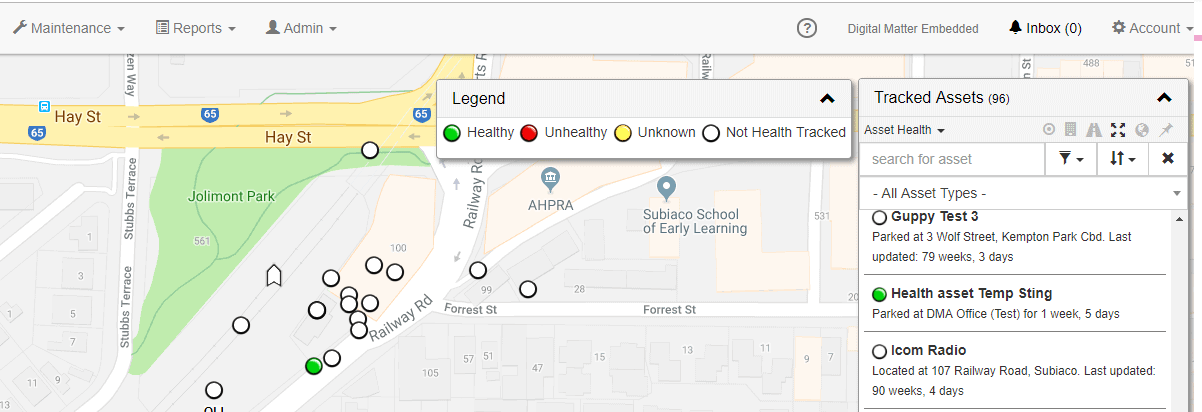
6. The Asset Health dashboard: Go to the “Asset Health” tab on TG to monitor your assets
a. At a glance, see which assets are healthy and unhealthy.

b. By clicking on the asset, you can view the history summary
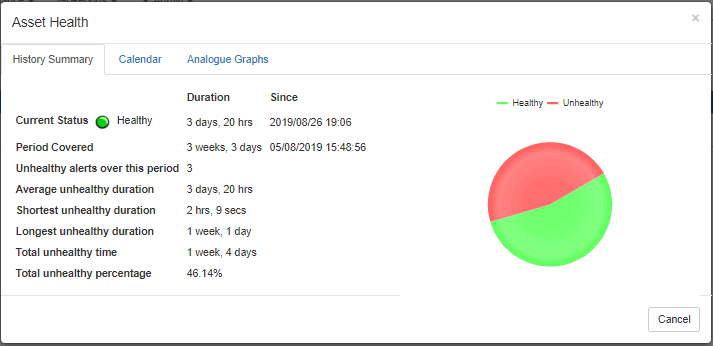
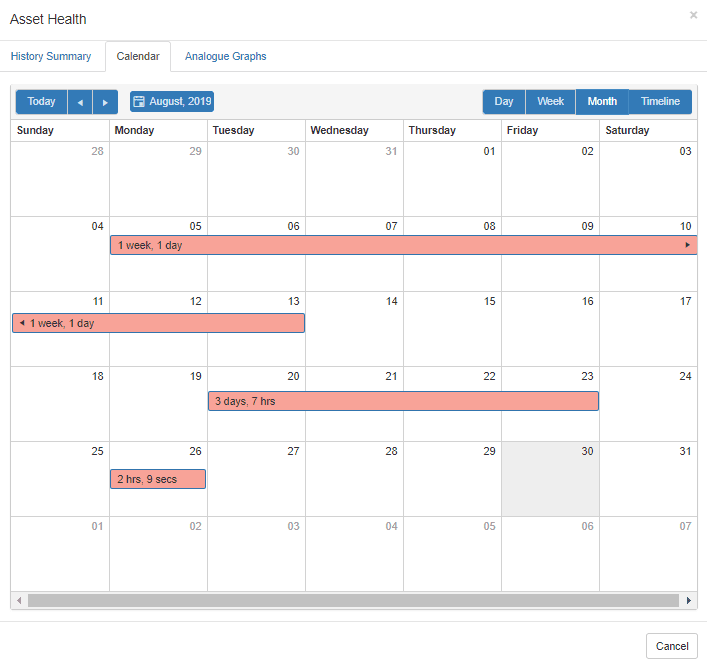
c. Calendar view of when the asset was “unhealthy”
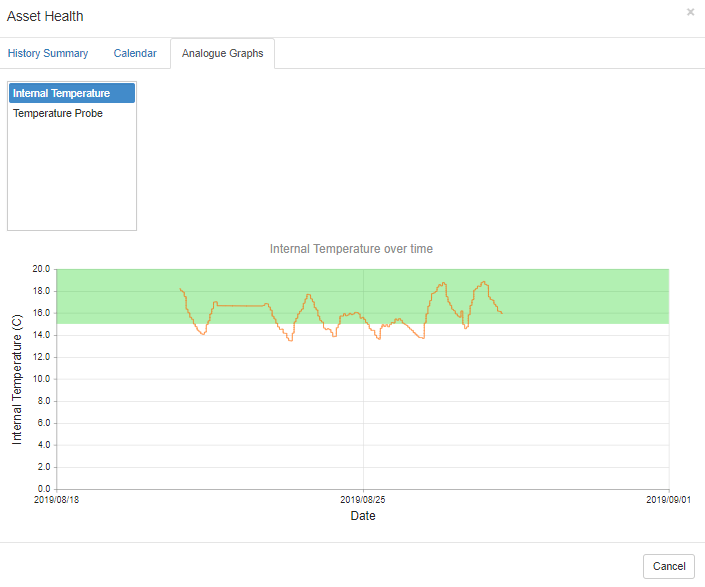
d. Analogue Graphs
More in Asset Management
Using Odometer and Run Hour Reading for Maintenance
This feature is currently available on: Bolt, Dart2, G62, G100, G120 Ensure you are on the latest version of firmware to use this feature. Check the…
Read guideAsset Utilisation
Tracking utilisation is a key reason that telematics devices are installed across fleets. Rather than being an expense, tracking devices and software can…
Read guideAsset Expense Tracking
TG Asset Expense Tracking – Getting Started Introduction “Asset Expense Tracking” allows users to: Add expenses linked to an asset, with references to…
Read guideGet more from TG Tracking
See the platform in action or talk to the team about your fleet, assets and reporting setup.